
Meta Description: Is your WordPress site not sending emails? Learn why it happens and how to fix it for good using an SMTP plugin. A clear, step-by-step guide for beginners.
Ever stared at your screen wondering why your WordPress website isn't sending emails? It’s a frustratingly common problem, but I promise you’re not alone. The issue almost always comes down to how your site is trying to send messages. By default, WordPress uses a basic PHP mail function—a method that modern email providers often block or flag as spam because it lacks proper security.
It's a classic WordPress headache, but the good news is there's a straightforward fix that will get your emails flowing reliably again. Let’s walk through it together.
Why Your WordPress Emails Are Going Missing

It’s a sinking feeling, isn't it? Your contact forms are silent, customers aren't getting their order confirmations, and password reset links just vanish into thin air. When crucial emails from your website simply disappear, it’s easy to think you’ve done something wrong.
Here’s the reassuring part: it’s almost never your fault. The real culprit is a core WordPress function called wp_mail(). This is the default engine that powers every single email your site tries to send, from simple notifications to important customer updates.
The Default Method Is Outdated
Imagine sending a letter through the post with no return address. That’s essentially what the wp_mail() function does. It relies on your web server's basic PHP mail capability to fire off emails. A decade ago, this worked just fine.
But today is a different story. Email services like Gmail and Outlook are in a constant battle against spam. When they receive an email sent via this old-school method, alarm bells start ringing. Their servers see a message that lacks proper authentication, making it look suspicious because its source can't be properly verified.
As a result, they'll usually do one of two things:
- Block it completely: The email never even reaches the recipient’s inbox or spam folder. It just disappears.
- Send it straight to spam: The email arrives, but it's buried in a folder that most people rarely check.
This is a huge challenge for countless website owners, disrupting everything from customer service to sales. A major reason for this is that the default setup doesn't use modern authentication protocols like SPF or DKIM, which are vital for proving an email's legitimacy. You can get up to speed with the latest email deliverability standards and discover key insights over at dma.org.uk.
Hosting Companies Add Another Layer
It’s not just the big email providers, either. Many web hosts are also taking a hard line on spam to protect the reputation of their servers. To do this, they often disable or heavily restrict the PHP mail function to stop spammers from abusing it.
This means your own hosting provider might be the one, unknowingly, stopping your WordPress emails from ever being sent in the first place.
Key Takeaway: The issue isn't a broken contact form or poorly written email copy. The problem is the delivery method itself. In the eyes of modern email and hosting systems, it's simply not trustworthy enough.
Luckily, the solution is to bypass this outdated method entirely. By setting up a proper email sending service, you can properly authenticate your emails and make sure they land exactly where they're supposed to: your user's inbox.
Quick Diagnosis for Your WordPress Email Problems
Before diving into the fixes, it helps to narrow down the potential cause. Use this table to match the symptoms you're seeing with the most likely culprit. It’s a great starting point for figuring out where to focus your attention.
| Symptom | Most Likely Cause | First Place to Check |
|---|---|---|
| No emails are being sent at all (forms, passwords, etc.) | Hosting provider has disabled PHP mail. | Your hosting control panel or support documentation. |
| Some emails arrive, but many go to spam | Lack of proper email authentication (SPF, DKIM). | Your email sending service (or lack thereof). |
| Contact form submissions never arrive | The form plugin might be misconfigured. | The settings page for your specific contact form plugin. |
| WooCommerce emails are missing (orders, receipts) | WooCommerce email settings are disabled or misconfigured. | The WooCommerce > Settings > Emails tab in your dashboard. |
| Emails are delayed significantly | Server overload or shared hosting limitations. | An SMTP plugin's email log to see when the email was sent. |
| You receive a "could not instantiate mail function" error | This is a direct confirmation that PHP mail() is not working. |
Your hosting provider's server configuration. |
This quick check can save you a lot of time. Once you have a better idea of the root problem, you can jump straight to the most relevant solution.
Choosing the Right SMTP Plugin for Your Site
Let's be honest, the most reliable way to solve WordPress email problems for good is to stop using WordPress's default email function altogether. It’s a bit like trying to send a critical business letter with a carrier pigeon—it might work, but you can’t really count on it. This is where an SMTP plugin steps in to save the day.
An SMTP (Simple Mail Transfer Protocol) plugin essentially reroutes all the emails your website tries to send. Instead of using your web host's often unreliable setup, it hands them off to a dedicated email service like SendGrid, Brevo, or even your Google Workspace account.
Think of it this way: the plugin acts as a secure, authenticated courier. It proves to email providers like Gmail and Outlook that the message is genuinely from you, which is the secret to avoiding the spam folder and ensuring delivery.
What to Look For in an SMTP Plugin
You don't need to get lost in a sea of options. The best SMTP plugins all share a few key ingredients that make them so effective. As you're looking around, just make sure your choice has these bases covered.
- A simple setup wizard: A good plugin won't throw you in at the deep end. It should walk you through connecting your site to an email service, step by step. No coding required.
- Plenty of mailer options: You want flexibility. The plugin should support a wide range of popular services, so you can pick one that matches your sending needs and budget.
- Email logging: This is an absolute lifesaver. It keeps a detailed log of every single email your site sends out, telling you if it was delivered successfully or if it failed. If something goes wrong, the error message is right there.
- A built-in test tool: Once you've set everything up, you need a way to know it’s actually working. A simple "send test email" button lets you confirm everything is configured correctly in seconds.
These are the core features you really need. While some plugins offer fancy reports or notifications, these four fundamentals are what will solve the core delivery problem.
My Two Cents: Always check for recent updates and a good number of positive reviews. It's a clear sign that the developers are on the ball, keeping the plugin secure and compatible with the latest version of WordPress.
Popular and Reliable Plugin Choices
While there are plenty of SMTP plugins out there, two names consistently come up for being both powerful and user-friendly: WP Mail SMTP and FluentSMTP.
WP Mail SMTP is the heavyweight champion, with millions of sites using it. Its free version is more than enough for most people, connecting you to all the major email services with a setup wizard that's incredibly easy to follow. If you're new to this, it's a very safe bet.
FluentSMTP is a fantastic free alternative that packs a serious punch. It gives you features like email logging and the ability to route emails from different addresses right out of the box, things you often have to pay for elsewhere. It’s a great choice if you need a bit more control without opening your wallet.
Honestly, you can't go wrong with either one.
Once you pick and install a plugin, your site's emails will finally start landing where they belong. A well-set-up SMTP plugin doesn't just fix delivery issues; it can even give your site a little performance boost by outsourcing the work of sending emails. Speaking of speed, if you're looking for other ways to get your site running faster, our guide on what to do when your WordPress site is loading slow has some great advice.
Ready to connect it all up? Next, we'll walk through the process of linking your new plugin to an email service.
Connecting Your SMTP Plugin to a Mailer Service
Alright, you've got your SMTP plugin installed, which is honestly the biggest hurdle. Now for the fun part: connecting it to a dedicated email service, or "mailer" as they're often called. This is the crucial step that actually fixes your WordPress email problems for good by creating a reliable, authenticated channel for your messages to travel through.
It might sound a bit technical, but modern plugins have made this process incredibly simple. You’re essentially just pointing the plugin to the right delivery service and handing over the keys so it can get to work.
This diagram lays out the simple, three-part process we're using to get your emails flowing properly.
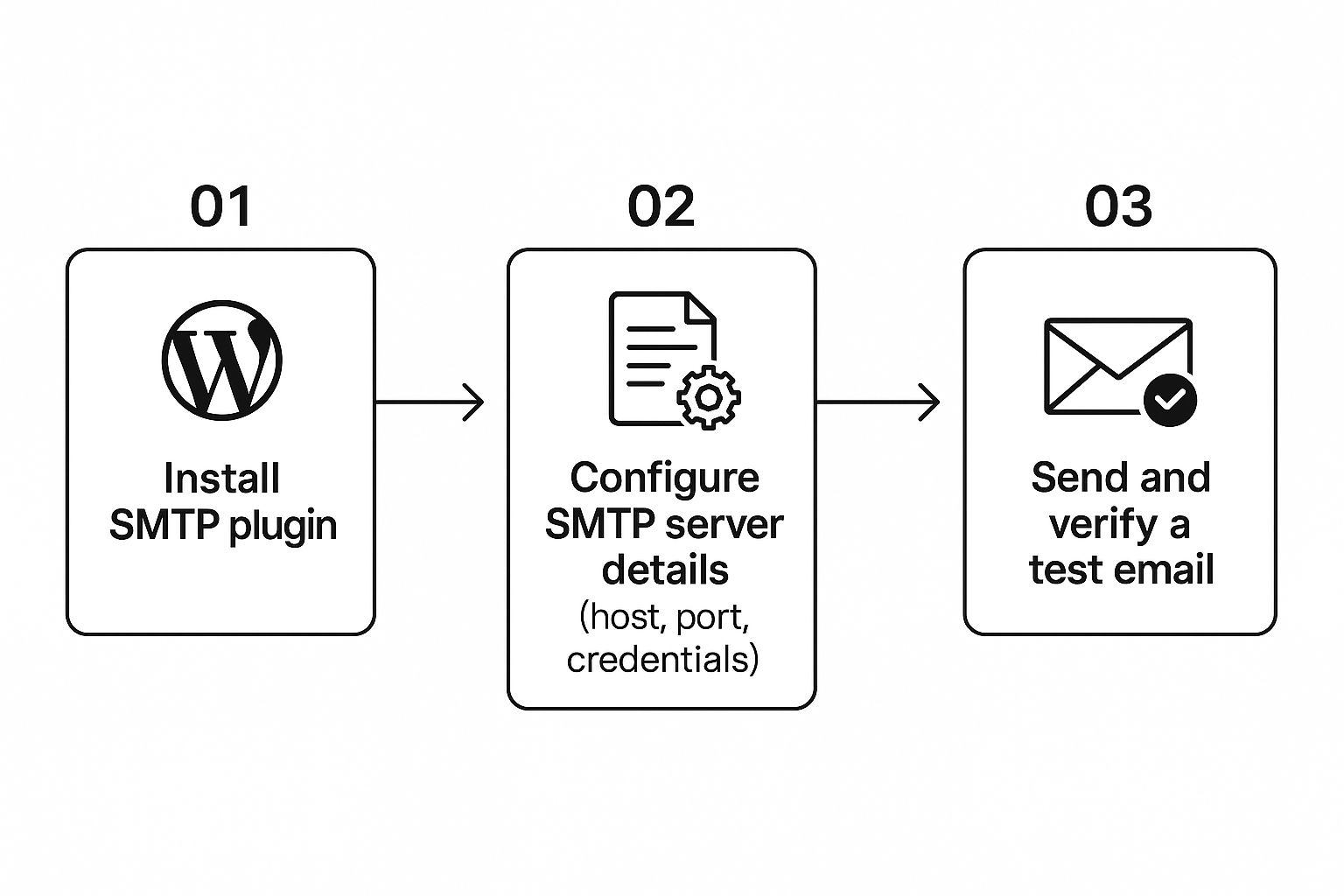
As you can see, the core of the fix is installing the plugin, tweaking its settings, and then making sure the connection is solid.
Choosing Your Mailer Service
Your SMTP plugin can’t do its job alone; it needs a partner to hand the emails off to. There are tons of fantastic services out there, but a few have become firm favourites thanks to their rock-solid reliability and brilliant free plans.
Here are a few of my top recommendations:
- SendGrid: A real powerhouse in the email world, known for its incredible deliverability. Their free plan gives you 100 emails per day, which is more than enough for most small business sites and blogs.
- Brevo (formerly Sendinblue): An excellent all-in-one platform that does more than just email. Brevo is extremely generous, offering a free plan with up to 300 emails per day, making it a superb choice if you're just starting out.
- Mailgun: Originally built with developers in mind, but it’s become very user-friendly. It’s a robust option for sites that expect to grow and need to scale their sending.
For most people, either SendGrid or Brevo will be a perfect fit. I find the choice often just boils down to personal preference, as both are trusted by millions to handle their critical transactional emails.
Finding and Entering Your API Key
Once you’ve picked your mailer and signed up for an account, the final piece of the puzzle is the API key. Think of an API key as a unique, super-long password that gives your SMTP plugin permission to send emails through your new mailer account.
Each service has a slightly different dashboard, but you can almost always find your API keys under a section labelled "API," "Developer," or "SMTP & API."
A Quick Tip: When you generate a new API key, copy and paste it somewhere safe immediately. For security, many services will only show you the full key one time, right after it's created.
With your API key copied, head back over to your WordPress dashboard and navigate to your SMTP plugin's settings.
From there, it’s just a few clicks:
- Select the mailer you just signed up for from the list of options.
- Paste your API key into the field provided.
- Fill out the "From Email" and "From Name."
The "From Email" should ideally be an address associated with your website's domain (e.g., info@yourbusiness.co.uk). The "From Name" is what people will see in their inbox, so pop your business or website name in there.
Hit save, and that’s it! The connection is made. Your website will now completely bypass your web host's unreliable email function and send everything through your new, authenticated mailer. It's a massive leap forward for ensuring every single one of your emails actually lands where it’s supposed to.
Sending a Test Email to Confirm Everything Works

You’ve connected your plugin to a mailer service, and you’re so close to putting your WordPress email headaches behind you for good. It’s tempting to call it a day and assume it’s all fixed, but there’s one final, crucial step: run a quick test. This simple action will give you immediate peace of mind and confirm that your hard work actually paid off.
Thankfully, you don’t need to go fill out your own contact form a dozen times just to check. Pretty much any quality SMTP plugin, like WP Mail SMTP or FluentSMTP, includes a built-in email testing tool. It’s there for this exact purpose—to verify your new setup is firing on all cylinders.
Running the Test
Finding the test tool is usually a breeze. Inside your WordPress dashboard, navigate to your SMTP plugin’s settings and look for a tab or menu item labelled “Email Test” or something similar.
Once you’re there, the form is dead simple.
- Send To: Pop in an email address you can check right away, like your personal Gmail or Outlook account.
- HTML/Plain Text: You can almost always leave this on the default setting, which is HTML.
- Send Email: Click the button and let it fly.
Now, switch over to your inbox. In just a few moments, you should see a new email from your website. Seeing that message land is a fantastic feeling—it’s the proof that your WordPress site can finally communicate with the world reliably.
What if the Test Email Fails?
If the test fails or throws an error, don't panic. This is actually good news! It gives you a clear signpost pointing to the problem, so you don't have to waste time guessing what went wrong. The error message itself is your biggest clue.
Here’s a quick checklist of the most common culprits I see:
- Incorrect API Key: This is the number one offender. A single mistyped character is all it takes for the connection to fail. Go back to your mailer service, copy the key again, and paste it in carefully.
- Wrong "From Email" Address: Some services are strict and require the "From Email" to be an address at the same domain you verified during setup. Double-check that this matches the requirements of your mailer (SendGrid, Brevo, etc.).
- Mailer Configuration Issues: Log back into your mailer service account. Did you miss a step? Often, it's something simple like a pending domain verification that needs to be completed.
Before you dive into troubleshooting, it's always a smart move to have a fresh backup of your site. Our guide on how to backup your WordPress site walks you through a clear process that can save you a world of stress.
Once you've found and fixed the issue, just run the test again. That successful email landing in your inbox is the final confirmation that you've solved the problem of your WordPress not sending email.
Keeping Your Emails Out of the Spam Folder

Getting your emails to send is only half the battle. The real goal is making sure they actually land in someone's inbox, not their spam folder. This all comes down to building and protecting your sender reputation.
Think of it as a credit score for your email address. A good score tells inbox providers like Gmail and Outlook that you're trustworthy. A bad one gets you sent straight to junk. The habits you form now are crucial for avoiding deliverability headaches down the road.
Ditch the Free Email Address
One of the fastest ways to get your emails flagged as spam is to send them from a generic address like @gmail.com or @yahoo.co.uk. When a website, a commercial entity, sends official notifications from a personal email account, it’s a massive red flag for spam filters.
You absolutely must use a professional email address that matches your website's domain. Something like support@yourwebsitename.co.uk or orders@yourbrand.com immediately looks more legitimate. This simple switch is a foundational step in building trust with email providers.
A professional email address is non-negotiable for a healthy email strategy. It signals to receiving servers that you are a legitimate business, which is the very foundation of good deliverability.
Authenticate Your Domain with SPF and DKIM
This part sounds a bit technical, but it’s one of the most important things you can do. SPF (Sender Policy Framework) and DKIM (DomainKeys Identified Mail) are essentially digital ID cards for your emails. They are special records you add to your domain's settings that prove your emails are genuinely from you and haven't been messed with in transit.
Here’s a simple way to think about it:
- SPF: This is a public list of the mail servers you’ve authorised to send emails for your domain.
- DKIM: This adds a unique digital signature to every email, which the recipient's server can check to verify its authenticity.
Your SMTP service (whether it's SendGrid, Brevo, or another provider) will give you clear, step-by-step instructions for setting these up. It usually just involves copying and pasting a couple of text records into your domain's DNS settings. It’s a small effort for a massive payoff.
Failing to do this can have a real impact. Some studies have shown that poor deliverability can cause up to 16.9% of emails to fail. Considering that email marketing can return a huge amount for every pound spent, you can't afford to lose that many messages.
Making changes to your site's technical settings can sometimes feel daunting. If you ever run into serious trouble and find your site is down, our guide on what to do when you face a WordPress fatal error can be a real lifesaver.
Common WordPress Email Questions Answered
Once you've wrestled with email issues and finally got things working, a few questions nearly always surface. It's completely normal—you've just fixed a major headache, and you want to be sure everything is truly sorted. We’ve pulled together the most common queries we get, with simple answers to give you total peace of mind.
Will Using an SMTP Plugin Make My Site Slower?
That’s a fair question, but the answer is a firm no. In fact, you'll often see the opposite happen.
An SMTP plugin essentially offloads the work of sending emails. Instead of making your own website’s server do the heavy lifting, it passes the job to a dedicated, specialist service. This frees up your server's resources to do what it’s meant to do: serve your web pages to visitors as fast as possible. The whole process is instant and happens in the background, so you get rock-solid email reliability without any hit to your site’s performance.
My Contact Form Messages Are Going to Spam. How Do I Fix This?
Ah, the classic sign you’re still using WordPress's default mail function. When your forms end up in the spam folder, it's a huge red flag that email providers like Gmail simply don't trust messages sent directly from your web server.
The only real, long-term fix is to route your site's email through a proper SMTP service, just as we've walked through in this guide.
By authenticating your emails with a trusted provider like SendGrid or Brevo, you’re basically vouching for them. You prove to Gmail, Outlook, and others that your contact form submissions are legitimate and wanted, not junk.
It’s also worth double-checking your contact form settings. Make sure the "From Email" is an address at your own domain (like hello@yourwebsite.co.uk), not the email address your visitor enters into the form. That's a common mistake that can trip up spam filters.
Can I Just Use My Free Gmail Account as the Mailer?
Technically, you can, but for any kind of professional or business website, it's a really bad idea. Google puts strict sending limits on personal accounts—usually around 500 emails per day—because they're intended for personal, not automated, use.
A tiny personal blog might just about scrape by, but if you have a shop, contact forms, or user registrations, you’ll hit that daily limit much faster than you think. And when you do, your emails just stop. No warning, no bounce-back, just silence. A dedicated transactional email service is built for this exact job and gives you the reliability your business depends on.
If I Change My Web Host, Do I Need to Set This Up Again?
Nope, and this is one of the best parts about doing it this way. Your entire email setup lives within your WordPress installation and connects to the external mailer service, completely separate from your hosting provider.
This means if you ever move your site to a new host, your bulletproof email system comes right along with it. You won't have to change a single setting. It makes a site migration that much smoother and ensures your critical communications never miss a beat. Think of it as a 'set it and forget it' solution that travels with your site.
You're All Set!
Navigating the world of email deliverability can feel complex, but by following these steps, you’ve replaced an outdated system with a modern, reliable solution. Your contact form submissions, order confirmations, and user notifications will now reach their destination, giving you one less thing to worry about.
If you've tried everything and are still stuck, or if you'd just rather an expert handle it, our team is ready to help. We specialise in sorting out tricky WordPress issues quickly and effectively. Contact us to learn more.